How to Remove Pages from a PDF (Without Any Hassle)
Ever finished putting together a document a report, an assignment, a scanned form only to notice a blank page or an unwanted cover sheet sitting right in the middle of it? It’s one of those small annoyances that almost everyone who works with PDFs runs into sooner or later, whether you’re a student, an office employee, or someone managing files for a small business. To make this easier, we built a straightforward PDF page remover that works right in your browser, with no software to install.
Why This Happens So Often
When files are scanned, merged, or exported from different sources, extra pages tend to sneak in instruction sheets, duplicate covers, or blank pages caused by the scanner itself. Before printing a document or sending it to someone, cleaning these up matters, because a file with stray pages just looks unfinished.
That’s really why so many people search for a quick way to delete pages from a PDF. They’re not looking for a complicated editing suite just something fast, free, and reliable that gets the job done without any learning curve.
How the Tool Works
The process is simple and doesn’t require any technical know-how:
- Open Tool Page: Go to This page Remove Pages From PDF
- Upload your PDF: drag and drop the file into the upload area, or browse and select it manually.
- Preview the pages: each page shows up as a thumbnail, so you can double-check before deleting anything important.
- Select the pages to remove: click on the ones you want to get rid of.
- Download the cleaned-up file: within a few seconds, your new PDF is ready.
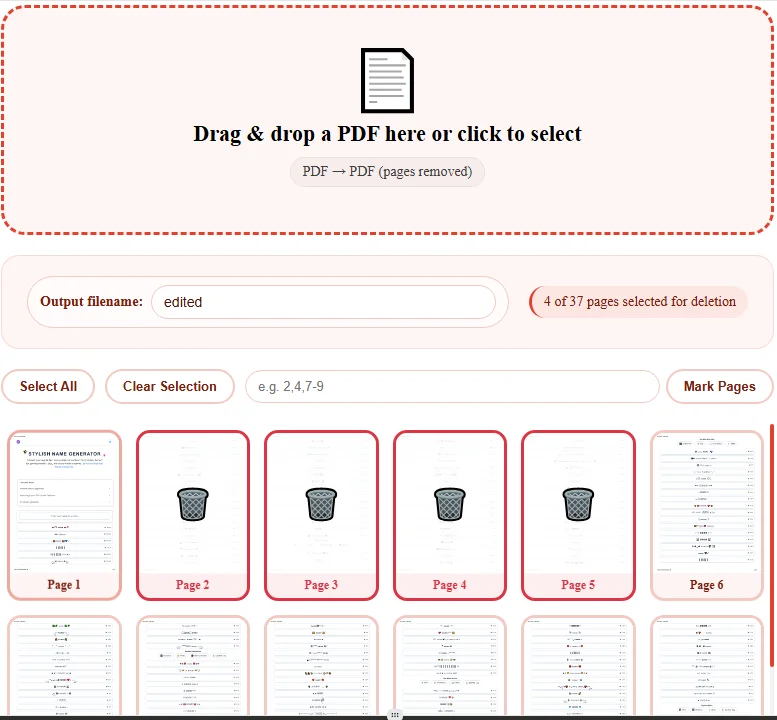
There’s no account required, and since the file is processed on your own device, there’s no real privacy concern either.
Who Actually Uses This
- Students trimming instruction pages or extra notes out of lecture PDFs before studying.
- Office professionals cleaning up reports and presentations before sending them to a client.
- Freelancers and designers removing unnecessary cover pages from scanned documents.
- Really, anyone who wants their PDF to look tidy and professional before sharing it.
A Useful Tip
If your task isn’t just about removing pages but also about combining several PDFs into one, it’s worth using a dedicated merging tool for that step. CombineToPDF works well for this it lets you merge multiple PDF files in just a few clicks. So if your workflow involves combining files first and then trimming out a few unnecessary pages, using both tools together covers the whole process.
A Word on Privacy
One of the biggest concerns people have with online tools is whether their files are being stored somewhere without their knowledge. To be clear: files are only used for the process itself and are deleted automatically afterward — nothing is kept on a server longer than it needs to be.
Final Thoughts
Removing pages from a PDF shouldn’t be complicated, and it definitely shouldn’t cost anything. A good online tool is one that’s simple, quick, and trustworthy. Next time you need to clean up a PDF, this is a process that takes just a few seconds from start to finish.
FAQs
Is this tool free to use?
Yes, it’s completely free and doesn’t require any sign-up.
Is my file safe?
Yes — files are deleted automatically after processing and aren’t stored anywhere.
Can I remove multiple pages at once?
Yes, you can select and remove more than one page in a single session.