How to Combine Multiple PDF Files Into One (Step-by-Step Guide)
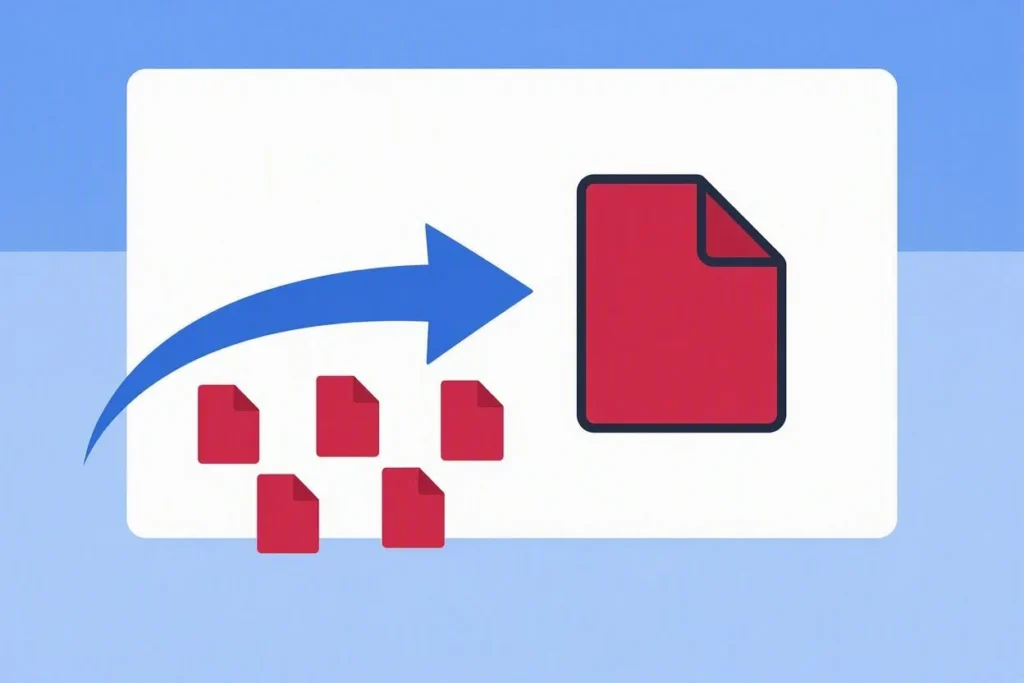
If you’ve ever emailed someone five separate attachments when one file would have done the job, you already know why combining PDFs matters. A job application with a resume, cover letter, and certificates scattered across different files looks messy. A single, well-ordered PDF looks like you know what you’re doing.
The good news is that combining PDF files into one document doesn’t require Adobe Acrobat, a paid subscription, or any technical skill. It takes a few minutes and, if you use the right tool, doesn’t even require installing anything on your computer.
Here’s exactly how to do it, along with a few things worth knowing before you start.
Why You’d Want to Combine PDFs in the First Place
A few common situations where merging PDFs actually saves you time:
- Job applications: resume, cover letter, ID, and certificates as one clean submission instead of four attachments
- University assignments: cover page, essay, and appendix combined into a single upload
- Business reports: separate sections written by different people, brought together into one report
- Invoices and receipts: monthly records kept in a single file instead of a cluttered folder
- Scanned documents: individual scanned pages turned into one readable file
In each case, the person receiving the file has one thing to open instead of juggling several. That alone is usually worth the two minutes it takes to merge them.
How to Combine PDF Files Into One (Step by Step)
Step 1: Gather your PDF files in one place
Before you merge anything, put all the PDFs you want to combine into a single folder. This makes it easier to select them and confirms you’re not missing a file partway through.
Step 2: Open a PDF merging tool
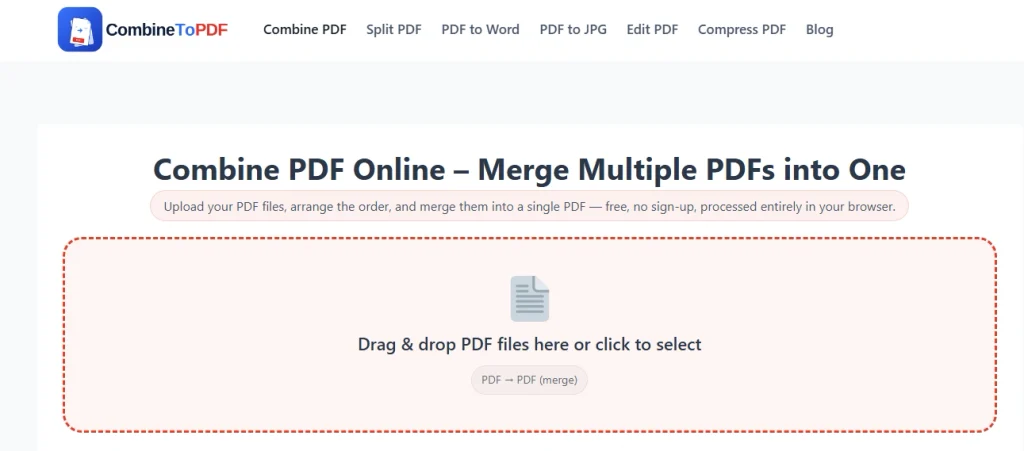
You don’t need desktop software for this. A browser-based tool like Combine PDF handles the merging directly in your browser no account, no download, and no file size games to unlock features.
Step 3: Upload your files
Drag and drop your PDFs into the tool, or click to select them from your device. Most tools, including Combine PDF, let you add as many files as you need in one go.
Step 4: Arrange them in the right order
This step is easy to overlook and genuinely matters. Once merged, the pages will appear in whatever order you set — a cover letter after your certificates instead of before them looks careless. Use the up and down arrows to get the sequence right, for example:
Cover Page → Main Document → ID/Certificates → Supporting Files
Step 5: Remove anything you don’t need
If you uploaded the wrong file or changed your mind about including something, delete it from the list before merging rather than after — it saves you from redoing the whole file.
Step 6: Name your file and merge
Give the combined document a sensible filename (something like shakeel khan.pdf beats combined.pdf when someone’s sorting through their inbox), then click the merge button. The tool processes everything and your new PDF downloads automatically.
That’s the whole process. No printing pages to “re-scan” them together, no third-party software, no watermarks eating into your document.
A Few Things Worth Knowing Before You Merge
Your originals stay untouched.
A merge tool reads your files to build a new PDF it doesn’t alter or delete the source documents. If something goes wrong, your originals are exactly as they were.
Password-protected PDFs can be tricky.
Encrypted or locked PDFs sometimes won’t merge properly. If a file fails, try opening it first in a regular PDF reader to confirm it isn’t corrupted, and remove any password protection through a legitimate method before uploading it again.
You need at least two files.
Obvious, but worth saying a single PDF has nothing to merge with.
Large files take longer.
If you’re combining dozens of scanned pages or high-resolution documents, give your browser a moment. It’s processing power, not a broken tool.
Browser-based tools that process files locally are worth preferring for sensitive documents. Some online converters upload your file to a server before merging it. Tools that do the merging inside your own browser — like Combine PDF — never send your documents anywhere, which matters if you’re dealing with contracts, ID scans, or financial records.
Combining PDFs vs. Other Methods
| Method | Combines Multiple Files | Needs Installation | Lets You Reorder | Works in Browser |
|---|---|---|---|---|
| Online PDF combiner | Yes | No | Yes | Yes |
| Desktop software | Yes | Usually | Usually | No |
| Manual copy-paste | Limited | No | Yes | No |
| Printing and re-scanning | Technically | No | No | No |
For most everyday needs applications, reports, invoices a browser-based combiner is the fastest route. Desktop software makes sense if you’re doing heavy PDF editing regularly, but for merging a handful of files, it’s overkill.
Frequently Asked Questions
Is it safe to combine PDFs online?
It depends on the tool. Tools that process files directly in your browser, without uploading them to a server, don’t expose your documents to anyone else. That’s a meaningfully different setup from a tool that uploads your file, merges it remotely, and sends it back.
Will combining PDFs reduce the quality of my document?
No. Merging simply places the existing pages from each file into a new PDF it doesn’t recompress or alter the content itself.
Can I combine PDFs on my phone?
Yes, as long as you’re using a browser-based tool. There’s nothing to install, so it works the same way on mobile as it does on a laptop.
How many PDFs can I combine at once?
Most tools don’t impose a strict limit it’s really a question of your device’s memory and how large the files are. A handful of documents merges instantly; dozens of large scanned files will take a bit longer.
Does merging change my original files?
No. The tool creates a brand-new combined PDF; your original files stay exactly where they were.
The Bottom Line
Combining PDF files into one is one of those small tasks that takes far less effort than people expect once they know where to look. Gather your files, get the order right, and merge that’s really the whole job.
If you need to do this right now, Combine PDF merges your files directly in your browser, keeps your documents off any server, and doesn’t ask you to sign up for anything.